Moving from WordPress to Hugo and GitHub Pages with GitHub Copilot
How I moved this blog from WordPress to a static Hugo site on GitHub Pages with the help of GitHub Copilot: export, theme, SEO, redirects, RSS, comments with Giscus and publishing new posts.

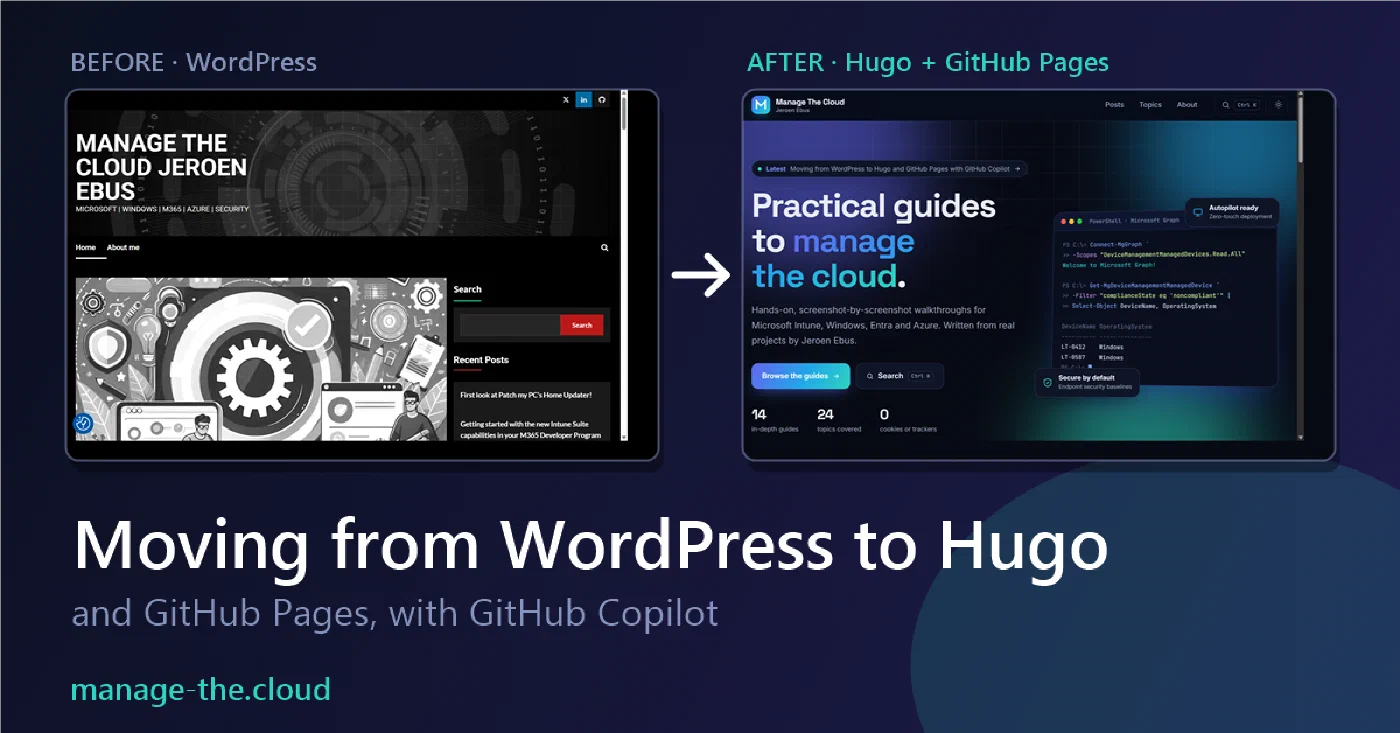
In this blogpost I will tell you how I moved my blog from WordPress to a static website, hosted on GitHub. Not because WordPress is bad, but because I wanted a website that is fast, secure by default, free of plugin updates and that I can write in Markdown, just like the guides I write for my work.
I got inspired by two other bloggers who did the same. My move from WordPress to Git and Markdown (Hugo, Blowfish and Cloudflare) | Michael Morten Sonne and From WordPress to Hugo on Cloudflare | JanBakker.tech . Thanks guys!
The big difference is that I did the biggest part of this together with GitHub Copilot. So, this post is also a bit of an experiment: how far can you get when you describe what you want and let an AI assistant do the heavy lifting?
Why a static website? #
A static website is just a folder with HTML, CSS and images. There is no database and no PHP, so there is nothing to hack and nothing to patch. My list of reasons:
No more WordPress, plugin and theme updates.
Every post is a Markdown file in Git, so I have a full history and a backup for free.
Hosting on GitHub Pages is free and fast.
Writing a new post is the same as writing documentation: a text file, a few screenshots and a
git push.
This is how my old WordPress website looked like, with the cookie settings button in the bottom left corner:

Export the content from WordPress #
First thing to do is getting everything out of WordPress. I asked Copilot to read the posts, pages and images from my existing site and convert them to Hugo Markdown. For every post this resulted in a folder with an index.md and the screenshots next to it (a so called page bundle).
Keep in mind: an export is never perfect. After the conversion I let Copilot audit all 13 posts for broken formatting, missing images, wrong headings and code blocks that lost their formatting. Those are the things you only notice when you compare the old and the new post side by side.
Choosing a theme #
Like the guys above I started with the Hugo theme Blowfish, which is a good-looking theme out of the box. After that I tried a modern restyle of it, and in the end I asked Copilot to build a brand new theme from scratch, with new branding, based on the type of content I write about.
That last one is what you are looking at right now. A few things that I wanted:
A dark and a light theme that follows your system setting, with a toggle.
No cookies and no trackers. The fonts are hosted on the site itself, and the only third-party content (comments) is loaded when you ask for it.
A good looking home page, topic pages that are easy to browse and an About page.
Search (press Ctrl+K), a table of contents on every post, copy buttons on code blocks and clickable screenshots.
The header with Manage The Cloud and Jeroen Ebus on two separate lines, so it is readable on every screen size.
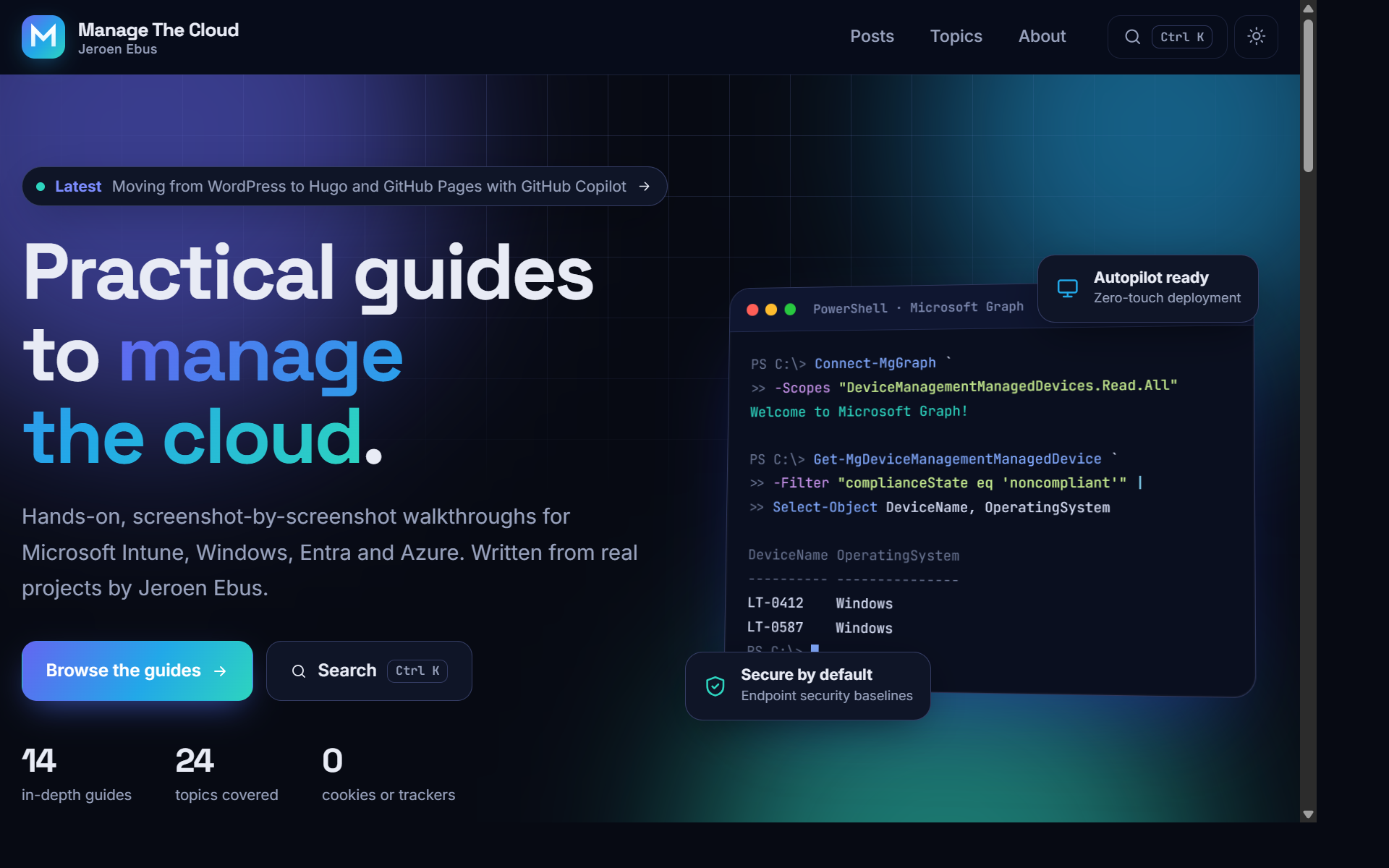
This is the new home page in dark mode:
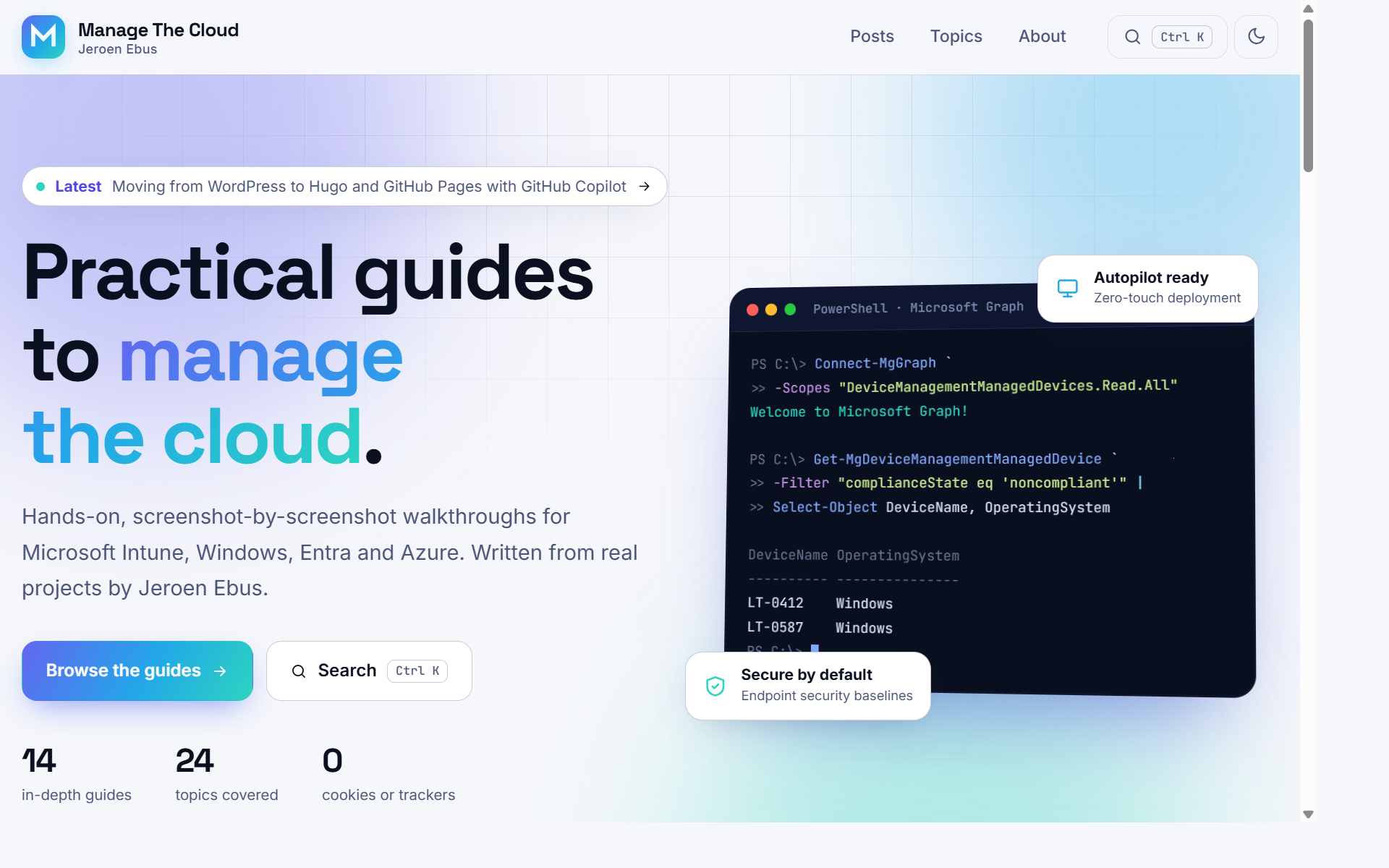
And the same page in light mode. The site follows the theme of your system by default and remembers your choice when you use the toggle:
The topics page groups the main topics together and shows how many guides every topic has:

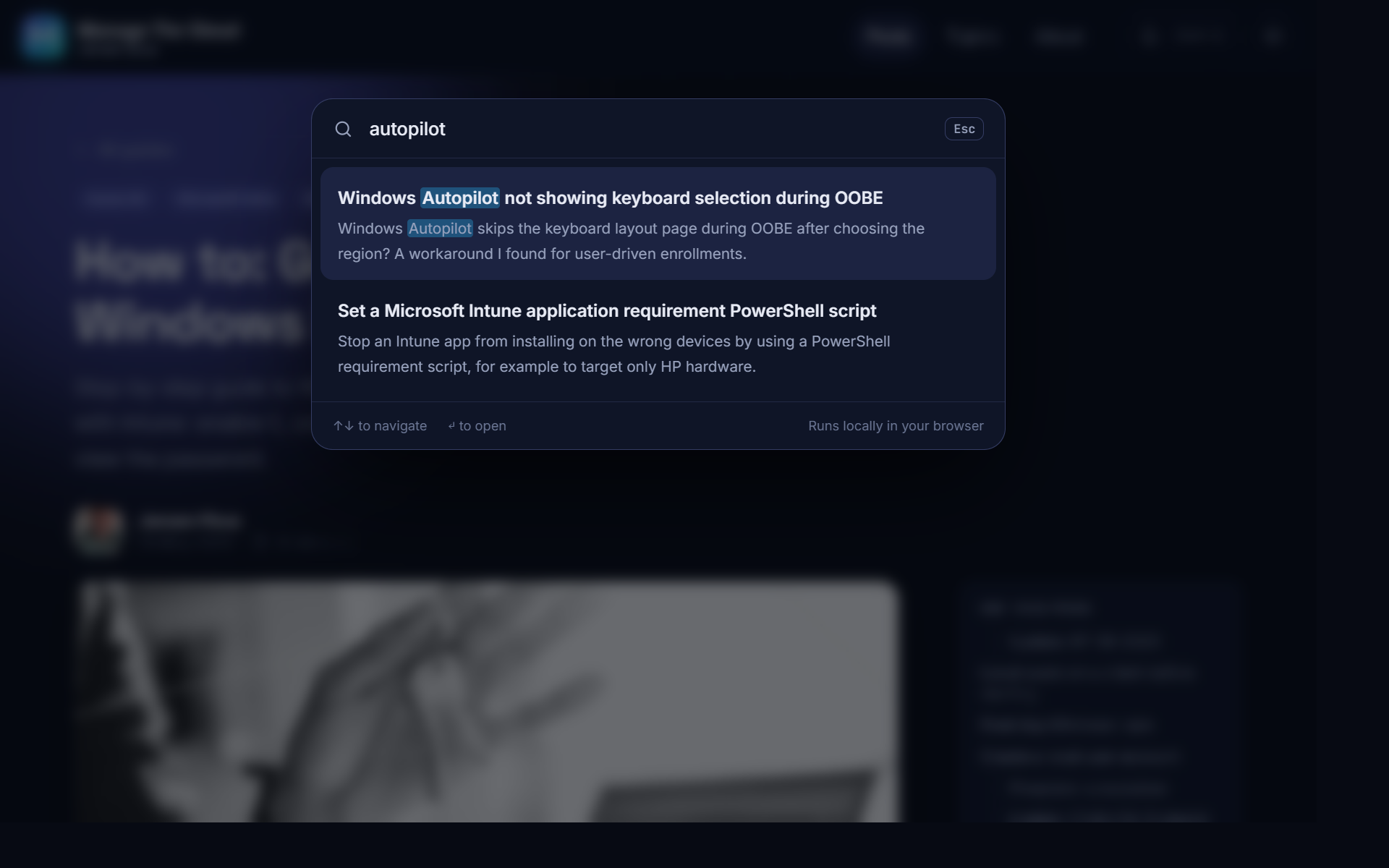
Search runs completely in your browser, so there is nothing to send to a third party:
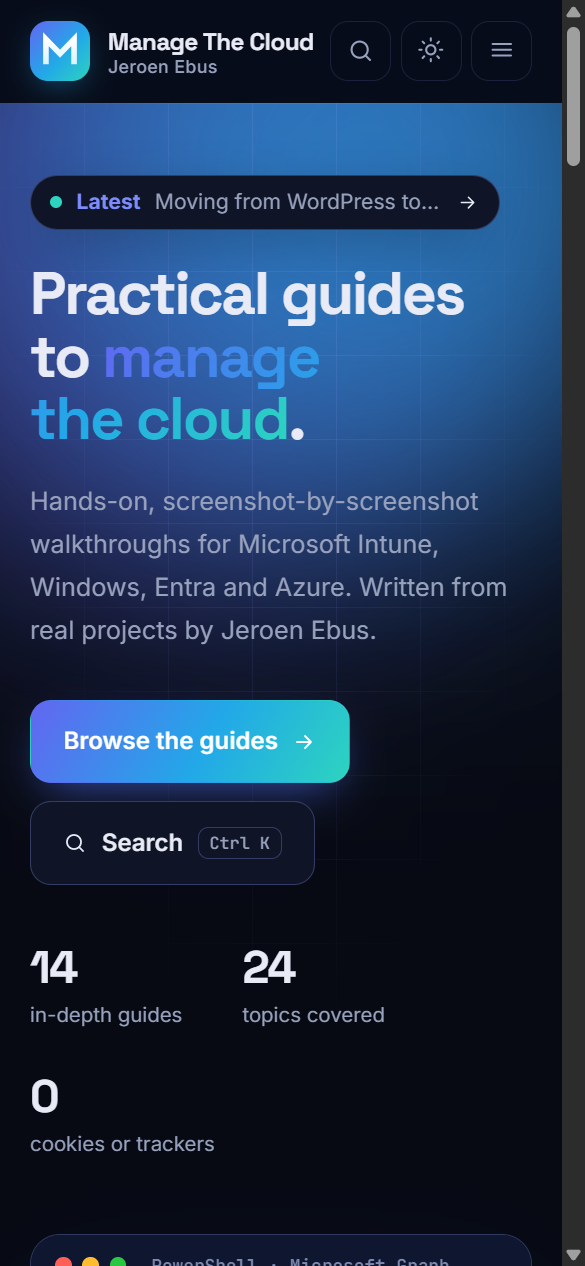
And of course it works on your phone as well:
The logo went through a few versions as well. The first one was an “M with a dot” that I didn’t like, the second one was too round, so the current logo is a sharp, geometric M. Just tell the assistant what you don’t like and it will try again. 😉
Keep your search engine ranking #
This is the part that is easy to forget and the part that can hurt the most. All links to your old website that are out there on the internet should keep working. This is what I checked:
Post URLs. I kept the same permalink format as WordPress (
/year/month/day/slug/), so all post links are unchanged.Old archive URLs. WordPress has
/category/...,/tag/...and/author/...pages. Hugo uses other URLs for these, so I created redirects for all of them. In total that were 24 categories and 56 tags. Keep in mind that GitHub Pages can’t do real server-side redirects, so these are small redirect pages. If you put Cloudflare in front of your site, you can use real 301 redirects.Images. Posts and external websites can link directly to an image under
/wp-content/uploads/. I restored the original images on the same paths. Only the resized versions (likeimage-11-300x197.png) are not there anymore.RSS feed. The old feed on
/feed/still works. I also kept the original WordPress item IDs asguid, otherwise every reader would show all your posts as new again. And the feed still contains the full post, like before.Sitemap and robots.txt. Hugo generates the sitemap, and
robots.txtpoints to it.
I compared the sitemaps and the feed of the live WordPress site with the new build to be sure that nothing was missed.
Alt text, descriptions and share cards #
WordPress didn’t export the alt text of my screenshots, so around 187 images had an empty alt text. That is bad for accessibility and for image search. Copilot filled them in, based on the captions and the text around the image.
I also added a one-line description to every post, and a default share image. Now a link to one of my posts on LinkedIn or X shows a nice card, and the search results show a real description instead of the first lines of the post.
Also the privacy policy got a rewrite. Because the site has no cookies and no trackers, there is no cookie banner needed.
Comments #
A static website has no database, so comments need a different solution. I had 8 approved comments on WordPress that I didn’t want to lose, and I still wanted people to be able to react on a new post. I did two things:
Archive the old comments. I exported them from WordPress to a data file in the repository (without email addresses). Under the posts that had comments, the site shows a collapsed “comments from the old WordPress site” block, including the replies.
Giscus for new comments. Giscus is an open-source comment system that stores the comments as GitHub Discussions in your own repository. Visitors sign in with their GitHub account. That fits well with my audience, and I own the comments. Note that Giscus is not made by GitHub, it just uses GitHub as the backend.
The setup is simple:
- Enable Discussions in the repository settings. The repository has to be public.
- Install the Giscus app on the repository.
- Use the Giscus configuration page to get the repository ID and the category ID, and put these in the site configuration.
I didn’t want the site to talk to a third party without asking, so the comment box is only loaded after a visitor clicks Load comments. Until then, nothing is requested from Giscus or GitHub. I mentioned this in the privacy policy as well.
Writing a new post #
This was the most important requirement for me: writing a new post should be easy. The site now has a template for it. In the folder of the website:
hugo new content posts/my-new-post
This creates a folder with an index.md and draft front matter. Fill in the title, category, tags and a one-line description, drop your screenshots in the same folder and write the post in Markdown. Preview it locally with:
hugo server -D
When you are happy, change draft: true to draft: false, commit and push. Everything else is automatic: the reading time, the table of contents, the topic pages, the counts on the home page, search, the sitemap and the RSS feed.
Publishing on GitHub Pages #
The website is published by a GitHub Actions workflow. Every push to the main branch builds the site with Hugo and publishes it on GitHub Pages. These are the steps I followed:
Create a public repository on GitHub. A free GitHub account can only use GitHub Pages with a public repository, and the same goes for Giscus comments. Don’t put anything in it that you don’t want to share. Drafts are not built, but they are visible in the repository.
Set the Pages source. In the repository go to Settings → Pages and set the source to GitHub Actions. The workflow in
.github/workflows/hugo.ymlinstalls Hugo, builds the site and deploys it. After the first run the site is available onhttps://<user>.github.io/<repository>/.Add a
CNAMEfile. Put a file namedCNAMEwith onlymanage-the.cloudin thestaticfolder, so it ends up in the root of the published site.Point the DNS to GitHub. At your domain registrar, create the
Arecords for the apex domain with the IP addresses from the GitHub documentation , and a record forwww. Leave the MX and TXT records alone, so email keeps working.Set the custom domain in Settings → Pages and wait for GitHub to issue the certificate. When it is ready, enable Enforce HTTPS. From then on,
http://andwwware redirected tohttps://manage-the.cloud.Verify the domain. In your GitHub account settings under Pages, add the domain and create the TXT record that GitHub shows you (
_github-pages-challenge-<user>). This prevents other people from publishing to your domain if the DNS ever breaks.
A few things that cost me some time:
- Check the proxy or “HTTPS” switch at your DNS provider. Some providers have a per-record switch that keeps serving their own address instead of the one you entered. Turn it off for the records that point to GitHub.
- No CNAME for
www? If your provider refuses to create one,Arecords forwwwwork fine as well. - Certificate stays on “none”. If GitHub doesn’t issue a certificate after the DNS is correct, remove the custom domain in the Pages settings and add it again. It took about 30 seconds after that.
- Still
http://after enforcing HTTPS. GitHub’s cache can keep serving the old page for a while. A new deployment clears it. - Redirects. GitHub Pages can’t do server-side redirects, so the old WordPress addresses for categories, tags and pages use a small redirect page instead of a real 301. If you need real 301 redirects, put Cloudflare in front of it. I didn’t, for now.
I also switched on domain lock, two-factor authentication, auto-renew and security alerts at my registrar, and added a DMARC record. If a domain expires or gets hijacked, it’s over, so this is worth five minutes.
What I learned #
Some tips if you want to do the same:
Describe what you want, not how to do it. “Make the header two lines on every screen size” works better than telling the assistant which CSS to change.
Always check the result in the browser. I looked at the site on desktop and mobile after every change.
Let the assistant check its own work: broken links, missing images, empty alt text and redirects can all be checked with a script.
Don’t trust everything it writes. For example, the PowerShell snippet on my home page used a Microsoft Graph permission that wasn’t enough for the command that was shown. I noticed that, and it was fixed. As an IT pro you should still review what AI generates!
Conclusion #
Moving from WordPress to Hugo and GitHub Pages is not as hard as I thought, especially with GitHub Copilot doing the repetitive work. The result is a fast website without cookies, where every post is a Markdown file in Git, old comments are kept, new comments run on GitHub Discussions and publishing a new post is a git push.
I hope that this post helps you to make the move as well, and if you have any questions, feel free to reach out!
A special thanks to Evert from Integration & Automation Solutions for being a mentor in Automation and AI First, and for the support!
Thanks for reading!

Keep reading
Related guides

Hello world!
Welcome to Manage The Cloud, a blog about the journey to the cloud with Microsoft Intune, Windows, Azure and security.
Comments
Comments are powered by GitHub Discussions (Giscus). Nothing is loaded from GitHub until you click the button.